

A website owner creates an Open Graph image – the image fits perfectly onto a Facebook post when a page is shared. A good one will have context and allure to encourage Facebook users to click it.
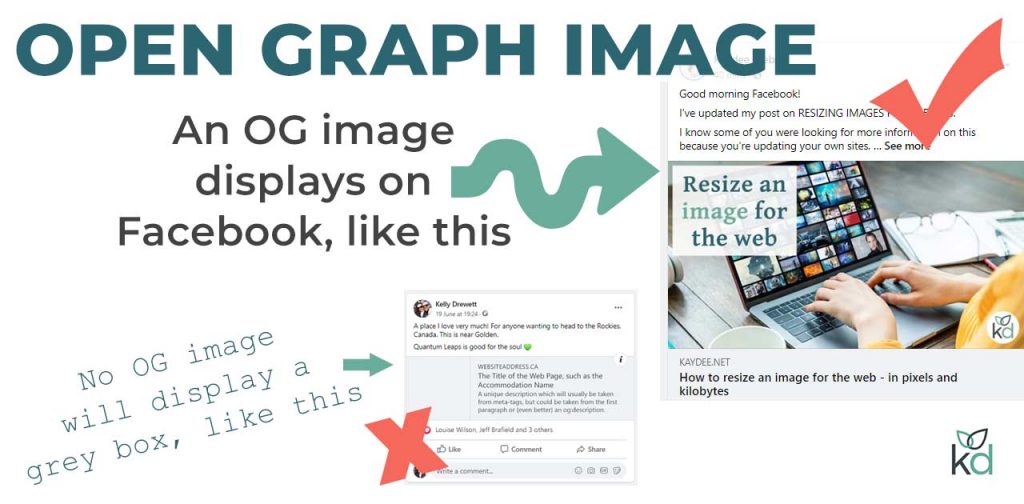
A brand looks more professional – and attractive – when a well put together Open Graph image is featured.
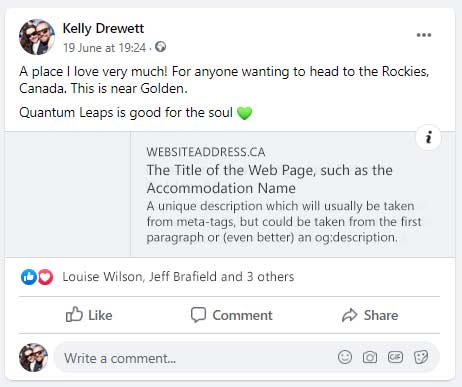
When shared, a page with no OG image will display a grey box or a random banner.
You can see below that a grey box is unattractive and doesn’t help the brand connect with an audience. It is easy to scroll past it. No one likes a grey box.
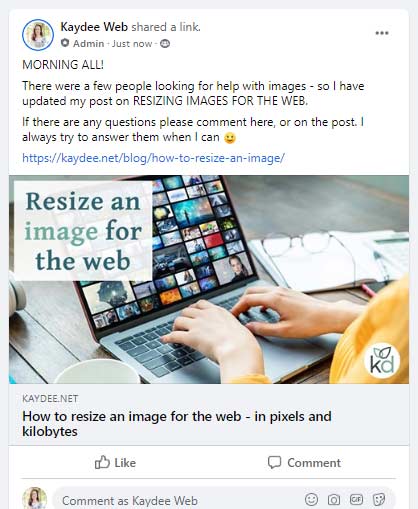
By contrast, below is a Facebook share of an article that DOES use an Open Graph image. It is so much more vibrant and is much more likely to receive engagement.
In this article, I show you OG image sizes and where they appear across the internet. I’ll also tell you how to add one to a WordPress page or post, as well as an HTML page.
Open Graph image size
The suggested size for a Facebook Open Graph image is about 1200 pixels by 630 pixels and should not be more than 8 MB, so remember to optimise the image.
The recommended size is on the Facebook Developers page – Images in Link Shares.
The minimum requirement is 200 by 200 pixels.
The landscape rectangle (1200 × 630 pixels) looks fantastic on Facebook shares, justifiably because Facebook develops the Open Graph system.
LinkedIn, Pinterest and Twitter will also recognise an OG image when a page is shared. Be aware of size complications on Twitter.
When the image is less than 600 pixels in width, the Facebook posts display differently.
Instead of displaying full width, stacked under the text, the image will float to the left, in column format.
In my opinion, the small image doesn’t stand out as well. Go for the large size every time.
Does Twitter use the Open Graph image?
Twitter robots will default to Open Graph if they can’t find Twitter meta-tags called Twitter Cards.
One thing to be aware of is that the OG image does not fit perfectly into a tweet – content can get cut off.
For a perfect fit, create separate images for the Open Graph image and the Twitter Card image. It doesn’t take long to resize an OG image to a Twitter Card image.
Twitter Card image size should be 1024 pixels by 512 pixels.
I wonder if the two platforms will align one day? It seems ludicrous to make us include two, seeing as the resolutions are so similar.
What to include on an OG image
The image must be relevant to the article content – you can quickly lose a fan if an image is misleading.
An overlay of bright, snappy title text helps to encourage clicks – show the reader what’s in the article. It could even include a call to action, such as ‘FIND OUT MORE’.
Less is more when it comes to text on Facebook images, though.
Include a logo on all images – this is known as branding, and it helps people recognise the content. I use my truncated, responsive logo as it’s more modest.
To create an Open Graph image, use Photoshop, a free image editor like GIMP or an online image editor like Canva. Canva is free for the most part, but you’ll need to pay to produce images in the required size.
The Yoast Open Graph image
Yoast SEO is a WordPress plugin that enables WordPress website owners to add meta-tags such as a title and description.
These help search engines understand the page’s content and control what appears on a Google search.
Website owners can add metadata, and Yoast also enables us to add Open Graph images to any WordPress article.
WP Beginner has a helpful article on installing Yoast SEO on WordPress.
Add a Yoast Open Graph image
Once Yoast is installed and activated, you’ll find the Yoast edit area at the bottom of any page or post. Sometimes you need to open it up to see the options.
To add a Yoast Open Graph image, click on the Social tab, as shown here.
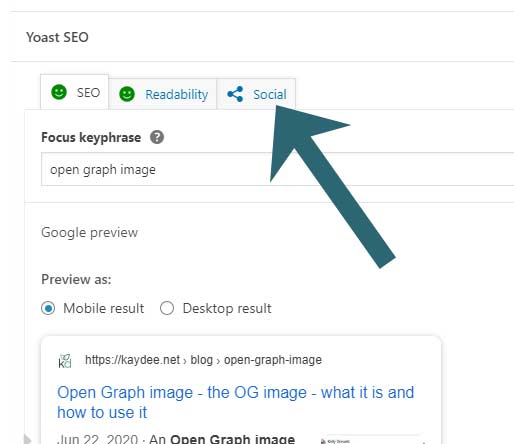
Once there, hit Facebook (difficult to see at first glance), which will open up more options.
Use this area to gain more control over the way articles appear when shared on social media.
Notice the Facebook Title and Facebook Description fields.
By default, standard meta-tags are used on social media. However, the Facebook Description can contain more words than a standard meta-description used on search engines.
Using the Facebook Description, you could also talk directly to Facebook fans by addressing them directly. A bonus for brands – so it’s worth completing this area.
To add the OG image, scroll to the bottom to find the Upload button. Click it to add an image at a recommended size of 1200 pixels by 630 pixels.
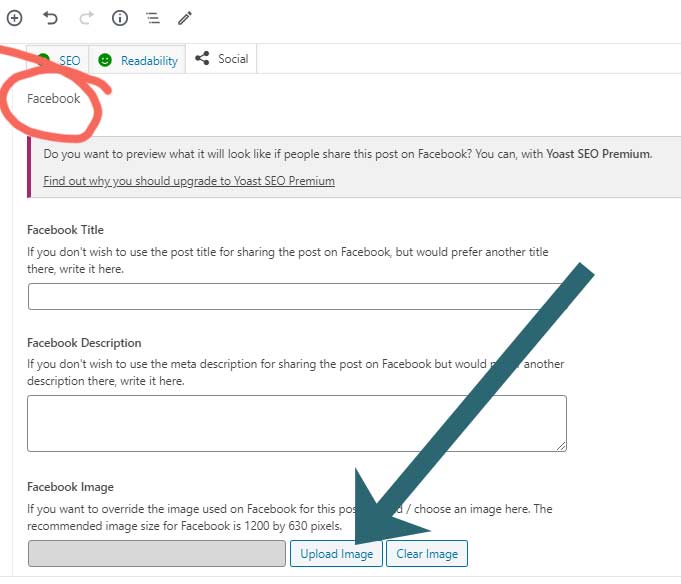
You’ll need to save (Update) the post or page for the changes to take effect.
Yoast Premium versus Yoast
Within Yoast Premium, it’s possible to preview the Open Graph image before sharing the all-important post on Facebook.
I love these social appearance templates, released in the latest Yoast Premium version. It gives an excellent overview of how things will appear on social platforms.
Yoast has created a decent explanation video to show you just what I mean – The Yoast SEO Social Previews.
If you haven’t got the Yoast Premium version, you’ll need to share the article on Facebook to take a look at the outcome.
To view the OG image with Yoast standard, you’ll need to share the page directly.
To do this, go to the front end of the website, navigate to the article. Now highlight the full URL in the address bar; it will look something like this:
https://yourwebsiteaddress.com/blog/open-graph-image/Go back to Facebook, start a new post and then paste the URL. You should see the correctly sized image appear above the Facebook Description meta-tag.
Add Open Graph image using HTML
If you have coded your website in HTML, use the Open Graph tags before the final </head> tag. The meta property for an Open Graph image is:
og:image
Include the width and the height so Facebook can render the image with speed.
<meta property="og:image" content="https://mywebsite.net/assets/opengraph/theogimage.jpg"/>

<meta property="og:title" content="Your Title"/>

<meta property="og:description" content="A full description of the page."/>

<meta property="og:image:width" content="1200"/>

<meta property="og:image:height" content="630"/>
Notice in the code above. The OG title and description will appear on the Facebook post.
These can be entirely different for the meta-title and meta-description of the page, so you could use them to personalise content to Facebook fans.
Let me know how you get on adding an Open Graph image to your website.
Open Graph image lowdown
- Recommended size is 1200 × 630 pixels to display a large rectangle stacked under the post text.
- Images under 600 pixels will display to the left of the OG title.
- The minimum size is 200 × 200 pixels, but I don’t recommend anything this low in resolution.
- Use text overlay but keep words to a minimum.
- Use height and width so that the image renders quickly.

