

Posts made on your Google Business Profile (GBP) are commonly called Google posts, Google Business Profile posts, or GBP posts, whichever you prefer!
Google posts act like mini-ads or social media updates on your Google Search panel and Google Maps listings that give potential customers a quick look at what you’re up to.
If you’re visiting somewhere and search for a local restaurant on Google Maps, and they posted an update an hour ago, you’ll probably think, “Great, they’re open, let’s go!” This is the power of Google posts.
Let’s look at what Google posts are, the different post types available, step-by-step instructions on how to publish them, and best practices to boost your local SEO.
If you haven’t set up your Google Business Profile yet, read this blog post first; we’ll be here when you get back.
What are Google Business Profile Posts?
Google Business Profile posts are updates that let you speak directly to your audience while they’re actively searching for you.
Instead of a potential customer having to hunt through your website to find out if you are open this Bank Holiday, a GBP post puts the answer right in front of them.
Google Business Profile posts help you:
- Improve customer experience: You provide immediate, helpful answers about opening hours, seasonal offers, or recent announcements before a user even clicks through.
- Signal activity to Google: Regular updates show the local ranking algorithms that your business is active.
- Guide gentle action: You can invite people to take the next step, whether that is booking an appointment, ordering online, or just reading a new blog post, with clear action buttons like “Book”, “Order Online”, or “Call Now”.
The Three Types of Google Posts
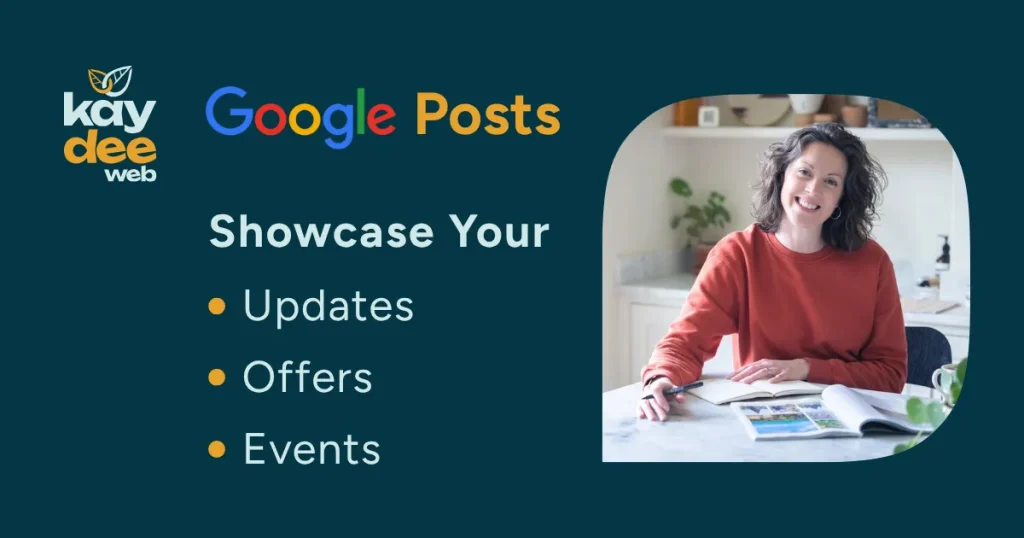
There are three Google post categories. Choosing the right one ensures you get the right built-in tools, like date pickers and button options.
Updates
Updates are best used for general news, business announcements, new arrivals, or sharing your latest blog.
Update posts include a description, a photo or video, and an action button, like Learn More or Book, and stay visible in your main profile feed for 6 months.
Offers
Offers are best used for sales, discounts, seasonal promotions, and limited-time deals. They require start and end dates and have optional fields for promo codes, redemption links, and terms & conditions.
These Google posts automatically expire and drop off your profile once the offer end date passes, so no one will be disappointed that they missed out.
Events
Event posts are perfect for webinars, workshops, seasonal celebrations, or community gatherings.
Include an event title, start and end dates, optional specific times, and a call-to-action button, like Sign Up or Buy.
Event posts remain active on your profile until the event passes.
How to Create a Google Post
Google posts are quick and easy.
Here’s a simple 5-step guide.
1. Sign in and Locate Your Business Profile
Make sure you are logged into the Google Account associated with your business profile.
Head to Google Search or Google Maps and search for your business name, or type “my business” into the search bar.
2. Find the Updates Panel
In your business management interface, near the top of the search results, click the Add Update button (or navigate to Posts > Add post).
3. Choose Your Post Type
Select Update, Offer, or Event. Your selection will open a form with the specific fields you need.
4. Add Your Media, Text, and Link
- Upload media: Add a clear photo or a short video clip (30 seconds max).
- Write a description: Aim for short, sweet, and engaging, ideally 80–100 words. Put the most essential detail right in the first sentence.
- Add an action button: Select a button like Book, Order Online, Learn More, or Call Now, and paste your relevant website landing page link.
5. Preview and Post
Click Preview to double-check how your imagery and text look on both mobile screens and desktop monitors.
Once you are happy with your Google post, click Post.
Done!
Google Posts Best Practices
To ensure your posts look great, respect users’ time, and steer clear of Google’s sensitive moderation bots, keep these grounded rules in mind:
- Get your image sizing right: Aim for a 4:3 aspect ratio (1200 x 900 px) or a square format (720 x 720 px). Save images as JPG or PNG between 10 KB and 5 MB.
- Keep focal points centred: Google crops images slightly differently depending on whether someone finds you via Maps or Search, so keep your visuals right in the middle.
- Front-load your message: Snippet previews only show the first 80–100 characters before clipping your copy with a “…Read More” link. Put your main value or hook in that opening line.
- Track your results: Add UTM tracking parameters to your action button URLs. It lets you see inside Google Analytics how many real website visitors your profile updates are generating.
- Avoid auto-rejection traps: Google’s algorithms are notoriously strict. Avoid putting phone numbers inside the main text body (use the built-in Call Now button instead), keep excessive exclamation marks or ALL CAPS to a minimum, and skip heavy text-overlay stock images.
Need Help With Google Posts?
We get it, sometimes it doesn’t matter how easy a process is; you simply don’t have the bandwidth to add it to your to-do list.
Technology should support you, not stress you out.
Get in touch to find out how we can help you with your Google Posts.